
What Is an Accessibility Widget?
Benefits, Features and When You Need More
A practical guide for government and enterprise website teams
Accessibility Tools
An accessibility widget gives website visitors controls to adjust how they experience a page. They may enlarge text, change contrast, reduce distractions or listen to written content. For government entities and businesses, these options can offer a useful way to support different browsing preferences while keeping the underlying service familiar.
The value becomes clearer when we consider a real visitor. Someone reading a long service description may prefer larger text and more space between lines. Another person may want to pause movement or hear the information aloud. A single visual presentation will not suit every situation, even when the website has been designed carefully.
This article explains what an accessibility widget does, which features to look for and where it fits within a broader accessibility programme. We use VisiWidget as a practical example, including its English and Arabic interface, Accessibility Profiles and individual browsing adjustments.
The Answer at a Glance
An accessibility widget is a visitor-facing tool for personalising website presentation and browsing assistance. It can provide useful options such as text adjustments, contrast settings and read-aloud controls. A widget should be selected for its actual functionality and evaluated on the website where it will be used. Its presence alone does not establish WCAG conformance.
Question
Practical answer
What does it offer?
Controls that visitors choose to adjust their browsing experience.
Who may find it useful?
People with different reading, visual, attention or interaction preferences, including some people with disabilities and older visitors.
What are Accessibility Profiles?
Preset combinations of settings applied through one selection.
What does VisiWidget include?
Arabic and English interfaces, profiles, presentation controls and text-to-speech with three speeds.
When do you need more?
When barriers involve website structure, forms, interactions, documents or evidence of conformance.
What Is an Accessibility Widget
An accessibility widget is a tool presented through a website interface, often accessed from a button that opens a panel of settings. Visitors select adjustments according to what makes the page easier or more comfortable for them to use. The available controls vary between products, so the term does not describe one fixed set of capabilities.
For example, a widget may let a visitor increase text size, highlight links or change colour presentation. Some also provide spoken reading of page text or preset profiles that combine several adjustments. These functions give visitors another way to interact with the content without asking the website team to create a separate version for every preference.
A widget is different from an accessibility audit. The widget provides controls during browsing; an audit evaluates the website and documents barriers. Some products advertise additional automated functions, but those claims should be assessed separately. A long feature list is most useful when the controls work reliably with the site’s actual content and interactions.
A website accessibility widget adds visitor controls for aspects of the browsing experience, such as text size, contrast or reading support. Some products are described as web accessibility overlays because they add a layer to an existing website. Their capabilities vary, so review the functions offered and test their behaviour alongside the underlying service. VisiWidget provides English and Arabic controls and preset accessibility profiles for visitor personalisation.
How an Accessibility Widget Can Help Website Visitors
Give visitors more control over reading
A person looking through eligibility conditions or a detailed product description may find the default text uncomfortable to read. Text size, spacing and line-height controls provide ways to adjust that presentation. Different visitors may choose different combinations, and the result should remain readable without obscuring buttons or important information.
Offer alternatives for visual presentation
Contrast and saturation controls allow visitors to explore a presentation that suits their preferences. Highlighting links can make interactive text easier to identify. These options can be valuable on information-heavy pages, where visitors need to distinguish the next action from surrounding content.
Reduce avoidable distractions
Moving elements, large images and media sound can compete with the information a visitor wants to read. Controls to pause animations, hide images or mute media provide additional choices. The effect should be checked on the particular website: essential instructions and meaningful content must remain available when a visitor changes the presentation.
Provide an alternative way to consume text
Read-aloud functionality gives visitors the option to listen to written website content. VisiWidget’s control, labelled “Screen Reader” in its panel, reads website text aloud at normal, slow or fast speeds. A visitor reviewing a lengthy information page can choose a listening pace that feels comfortable.
These benefits should be demonstrated through actual tasks rather than assumed from a feature name. The relevant question for a service owner is whether the visitor can find, understand and use the information after applying their preferred settings.
Accessibility Widget Features to Look For
Features are easier to evaluate when grouped by what they let the visitor do. VisiWidget brings these controls together in its accessibility panel. Their effect should be demonstrated on the website, especially where content is dynamic or layouts are complex.
Feature group
VisiWidget controls
Reading and text
Text Size, Text Spacing, Line Height, Text Align and Dyslexia Friendly.
Visual presentation
Contrast, Saturation, Highlight Links and Cursor.
Distraction controls
Hide Images, Pause Animations and Mute Media.
Interaction and assistance
Enlarge Buttons, Page Structure, Tooltips and Screen Reader.
Personalisation and panel controls
Accessibility Profiles, Large View Mode, Shift and Reset.
Reading controls offer several ways to adjust text presentation. The Dyslexia Friendly setting provides another reading presentation option. Preferences vary between people, including those with dyslexia. Visitors should be able to judge whether the resulting presentation helps them.
Link highlighting, cursor options and larger buttons may help visitors identify or interact with page elements. They should be checked alongside menus, dialogs and forms so that the changed appearance does not hide an action or interfere with the layout. Page Structure and Tooltips are additional assistance controls whose value should be explained through the experience they provide on the actual site.
The read-aloud feature deserves a clear description. VisiWidget offers text-to-speech with three reading speeds. This listening option complements dedicated assistive technologies such as NVDA, JAWS or VoiceOver, which offer broader navigation and interaction capabilities. Website teams still need to consider compatibility with the tools visitors already use.
Reset gives visitors a way to return from their chosen adjustments. Large View Mode and panel repositioning provide further interface options. These controls help keep personalisation manageable, particularly when someone is exploring the settings for the first time.
How Accessibility Profiles Work
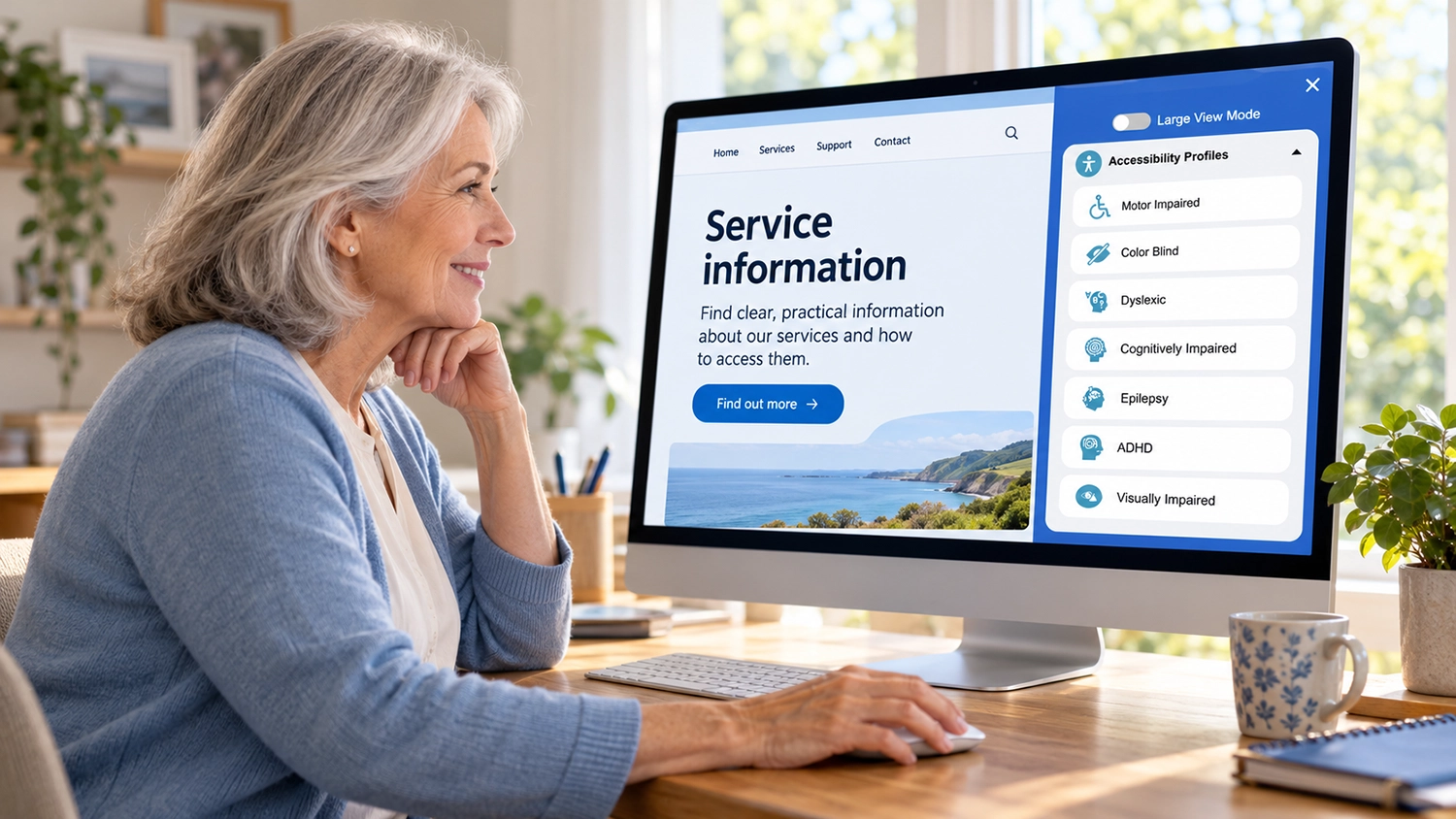
Accessibility Profiles apply a predefined combination of settings through one selection. Instead of finding and adjusting each control separately, a visitor can begin with a preset intended for a particular set of needs. This makes the feature an accessible starting point for discovering the available options.
VisiWidget’s panel includes seven profiles: Motor Impaired, Color Blind, Dyslexic, Cognitively Impaired, Epilepsy, ADHD and Visually Impaired. Selecting a profile applies its preselected settings. Each profile offers a starting point for exploring a different combination of browsing adjustments.
The profile names are guidance for choosing settings, not an assessment of the visitor. People with the same condition may have different preferences. A profile provides a convenient starting point; the suitability of its settings still depends on the individual and the page being used.
Why Arabic and English Support Matters
A bilingual website should make its browsing tools understandable to the audiences it serves. VisiWidget is available in English and Arabic, allowing visitors to use its interface in either language. For GCC organisations, this is a practical part of offering personalisation across both language versions of a service.
For example, an Arabic-speaking visitor reading service requirements should be able to understand the widget’s controls while using the Arabic website. An English-speaking visitor should receive the same clarity when exploring the English interface. The controls should feel like part of the service experience.
Arabic interface availability does not, by itself, verify every aspect of bilingual accessibility. Teams should also evaluate right-to-left layouts, mixed-language content and the effect of text changes in both versions. These checks help distinguish language availability from the quality of the complete browsing experience.
What to Assess Before Choosing an Accessibility Widget
Begin with the needs of the website’s visitors and the tasks they perform. A public information site, an application portal and an online store place different demands on browsing controls. Ask for a demonstration using representative pages rather than relying entirely on a vendor’s feature checklist.
During evaluation, check whether the panel can be opened and operated with a keyboard, whether control names are understandable and whether changes can be reset. Try text adjustments on long pages and complex forms. Check contrast changes, expanded menus and dialogs, and verify that the widget button does not cover important content on smaller screens.
For bilingual sites, test Arabic and English separately. Confirm the behaviour of read-aloud functionality on the content your audience uses; interface language support should not be treated as proof of speech-language coverage or pronunciation quality. Review compatibility with existing assistive technology and the website’s own accessibility features.
The website team should also review loading performance, privacy and technical support as part of its normal product selection process. Agree who will check the widget after website updates. These are evaluation points, rather than assumptions about any specific product’s performance or data handling.
When You Need More Than an Accessibility Widget
Personalisation can be useful while the organisation continues improving the underlying website. Further work is needed when a problem affects the service itself: an unclear form error, an inaccessible dialog, a keyboard trap or a document that cannot be read in a meaningful order. A presentation adjustment does not establish that those problems have been resolved.
Consider a visitor applying for a permit. Larger text may help them read the instructions, but the task still depends on labelled fields, usable validation, document upload and a clear confirmation. The complete journey needs evaluation, including the interaction with assistive technology.
The Web Content Accessibility Guidelines define testable criteria for web accessibility. Conformance depends on meeting the relevant criteria, rather than displaying a widget button. An organisation seeking evidence of conformance should arrange an assessment with a defined scope and document the findings.
A professional accessibility audit can identify barriers that require changes to content, code or design. Our article on automated and manual accessibility testing explains how the methods complement each other. W3C’s guidance on accessibility evaluation tools also explains why human judgement remains necessary for parts of an assessment.
A balanced approach gives visitors useful controls while maintaining responsibility for the website’s accessibility. The widget, professional evaluation and ongoing improvements can serve complementary roles. Together, these activities help teams offer personalisation and address the barriers found in their digital services.
Frequently Asked Questions
What is an accessibility widget
It is a visitor-facing website tool that offers controls for personalising presentation or browsing assistance, such as text size, contrast and read-aloud functionality. Features vary between products.
Who can benefit from an accessibility widget
Visitors with different reading, visual, attention or interaction preferences may find its controls useful. The benefit depends on the person, the feature and the website where it is used.
What are Accessibility Profiles in VisiWidget
They are predefined combinations of settings. A visitor selects a profile and its preselected adjustments are applied, reducing the need to configure each setting separately.
Is VisiWidget available in Arabic and English
Yes. VisiWidget has Arabic and English interfaces. Website teams should also check the experience on both language versions of their site.
Can VisiWidget read website content aloud
Yes. The feature labelled Screen Reader reads website text aloud at three speeds: normal, slow and fast.
Does an accessibility widget guarantee WCAG conformance
No. The presence of a widget is not evidence that a website meets all applicable WCAG criteria. Conformance requires evaluation of the relevant content and interactions.
Can we use a widget alongside a professional audit
Yes. A widget offers visitor controls, while an audit identifies and documents accessibility barriers. The two can support different parts of the same improvement programme.
How VisiAble Can Help
VisiAble helps organisations offer visitors more choice through VisiWidget, with English and Arabic interfaces, Accessibility Profiles and individual controls for reading, visual presentation and browsing assistance. Its read-aloud feature lets visitors listen to website text at normal, slow or fast speeds.
You can explore VisiWidget on the VisiAble website and see how its controls affect your own browsing experience. For a more relevant demonstration, contact VisiAble to discuss your website, audience and important service pages. Reviewing the tool in the context of your content helps your team understand its practical value.
Where your organisation also needs to identify underlying barriers or assess accessibility against a defined standard, VisiAble provides professional auditing and related services. This allows your team to plan visitor personalisation alongside improvements to the website itself. Learn more about our accessibility standards.