

Accessible Online Forms: Common Barriers in Applications and Bookings
A practical guide for government and enterprise service teams
Digital Accessibility
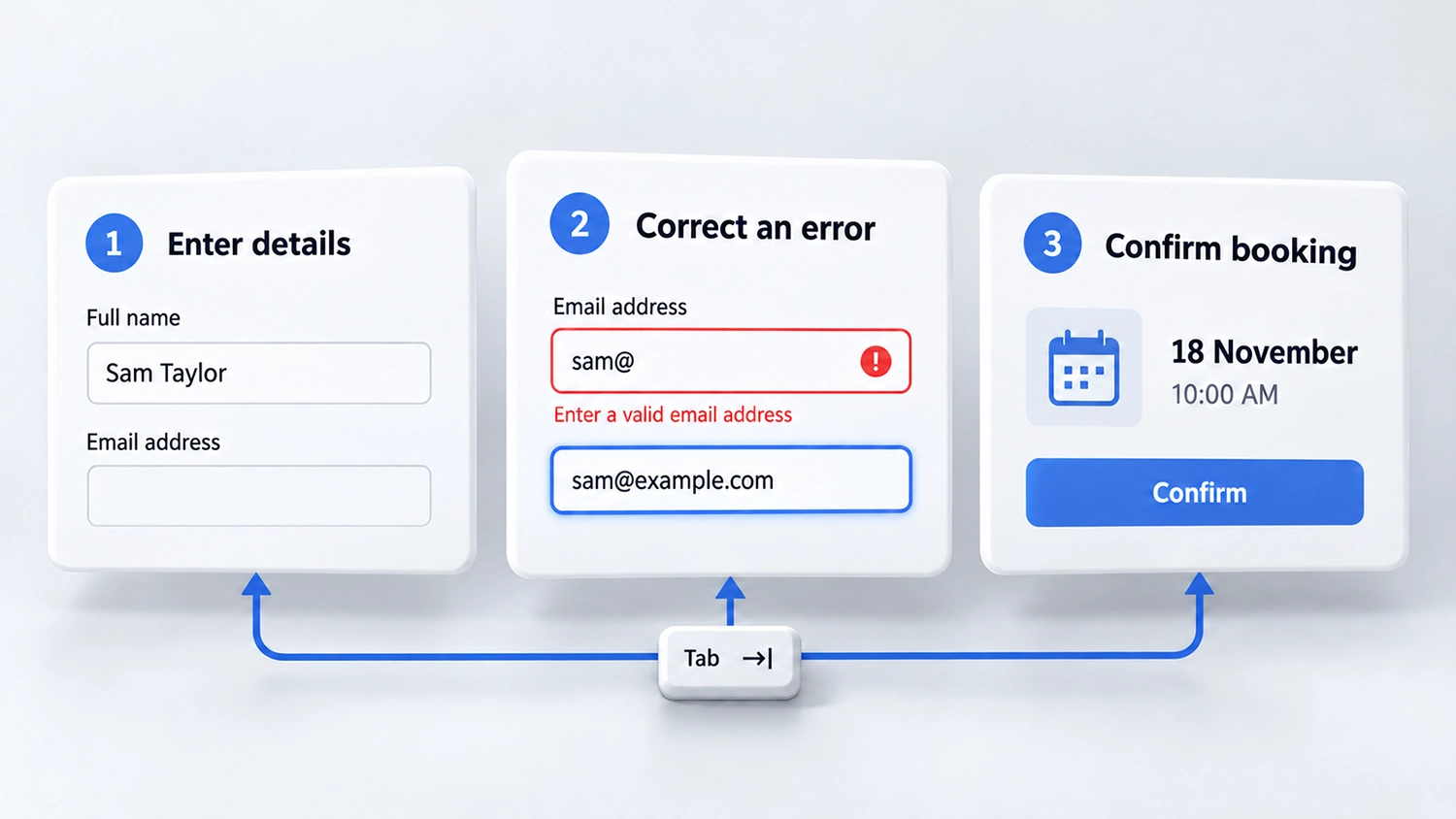
Accessible online forms allow people to enter information, understand what is required, correct mistakes and complete a service using their preferred input methods and assistive technology. For government entities and enterprises, this makes forms a priority: a visitor may read every instruction successfully and still be unable to submit an application or confirm a booking.
A form is more than its initial screen. The review should include authentication, conditional questions, document uploads, errors and final confirmation. This guide explains common barriers in Arabic and English services and how teams can test the complete process before accepting or publishing it.
Review the Service From Entry to Confirmation
Map the task a visitor needs to complete. Identify the information and documents required, the steps involved and any external systems. A booking journey might include choosing a service, selecting a location and time, providing contact details and receiving a reference number.
Include unsuccessful attempts in the review. What happens when a date is unavailable, a file is rejected or a session expires? Those states are part of the service, even if a crawler never reaches them.
The W3C forms tutorial provides guidance for designing accessible forms. Use it alongside a task-based review of your implementation, rather than treating an attractive layout as evidence that the process works.
Give Fields Clear Labels and Instructions
Each field needs an understandable purpose that is available to assistive technology. A label displayed near a box is not enough if the implementation does not associate them appropriately. Check text inputs, checkboxes, radio buttons and selectors, including controls added after an earlier answer.
Placeholder text should not be the only instruction: it may disappear during entry. State required information and formatting expectations before users encounter an error. For a telephone number, explain the accepted format rather than leaving visitors to guess whether a country code is needed.
W3C guidance on labelling controls and form instructions explains these relationships. Keep the visible wording and accessible name consistent enough to support people using speech input as well as screen readers.
Make Accessible Online Forms Work With a Keyboard
Complete the form without a mouse. Check whether every required control can be reached and operated, whether the current focus is visible and whether the sequence supports the task. Do not stop after verifying that the first field accepts text.
Pay attention to custom selectors and date pickers. The visitor needs to know which date is selected, which options are unavailable and how to leave the component. A calendar that opens correctly but traps focus can prevent the booking.
The WCAG guidance on keyboard operation provides a reference. The WAI date picker example illustrates an interaction approach; its code still needs appropriate testing before production use.
Error Recovery in Accessible Online Forms
Try missing, incorrectly formatted and conflicting entries. The response should identify the problem and help the visitor resolve it. “Invalid input” is less useful than an explanation of the accepted date format or the field requiring attention.
Do not rely on a red border alone. Ensure that errors are discoverable and associated with the relevant fields. Where several errors occur, a usable summary can help visitors locate them without repeatedly searching the whole form.
W3C guidance on form notifications covers feedback after submission and during interaction. Review whether announcements arrive at a useful moment and whether valid information remains available while the visitor corrects a mistake.
Keep Multi-Step Applications Understandable
Explain the current stage and how it relates to the rest of the process. Meaningful step titles help visitors distinguish entering personal information from uploading documents or reviewing a submission.
Test movement backwards as well as forwards. Returning to an earlier step should not create unexpected changes or make previously entered information unnecessarily difficult to recover. The W3C guidance on multi-page forms discusses clear progress and manageable stages.
Where information is required again within the same process, examine whether it can be populated or selected instead of retyped. WCAG guidance on redundant entry includes exceptions for essential re-entry, security and information that is no longer valid. Apply the requirement to the actual process rather than assuming all repeated fields are prohibited.
Check Authentication and Time Limits
A service can become inaccessible before the main form begins. Review login, password recovery and verification steps with the same care as the application itself. Check support for password managers and copy and paste, and investigate authentication tasks that depend on remembering or transcribing information.
WCAG guidance on accessible authentication describes the applicable conditions and exceptions. Review the complete authentication arrangement rather than assuming that a verification method is accessible because it is widely used.
For content-imposed time limits, check warnings and the available ways to turn off, adjust or extend the limit where required. The WCAG timing guidance includes specific conditions and exceptions. Use authorised test environments to assess expiry and recovery without exposing real applicant data.
Include Uploads, External Steps and Final Review
Document upload instructions should explain accepted file types and size limits before selection. Test the upload control, progress feedback, rejection messages and the ability to remove or replace a file. A drag-and-drop area needs a usable alternative when dragging is unavailable.
Review payment, identity or booking components provided by third parties. Record where control passes to another system and whether visitors can return to the service. Responsibility for arranging a correction should be clear even when another supplier owns the component.
For consequential submissions, assess the safeguards that apply. WCAG guidance on error prevention describes alternatives involving reversal, checking or confirmation for specified transactions. A review page should allow users to understand and correct relevant details when it is the chosen safeguard.
Test Accessible Online Forms in Arabic and English
Evaluate both language versions independently. Check translated labels, instructions, validation messages and confirmations. A language switch on the page does not prove that a third-party component or error message has also changed language.
For Arabic services, test mixed text such as reference codes, email addresses, dates and telephone numbers. Review meaningful reading and focus order, not just visual mirroring. Explain the expected date format and calendar where ambiguity could affect the booking.
Also test the form at enlarged text settings and on the supported mobile layouts. Instructions and errors should remain available, and controls should not cover each other. A working desktop form can still need corrections at narrower widths.
Record a Complete Test and Retest Corrections
Use an agreed scenario with dummy data: enter the service, complete the fields, trigger an error, correct it, upload a permitted file and reach confirmation. Confirm that the reference number and next steps are understandable through the relevant assistive technology.
Record the language, environment, steps, expected outcome and actual behaviour for each issue. Combine automated checks with manual testing and, where appropriate, feedback from people with disabilities. After a fix, repeat the affected journey and review shared controls that may have changed.
Frequently Asked Questions
Is a Label Enough to Make a Form Accessible?
No. Labels are important, but operation, instructions, error recovery, dynamic changes and completion feedback also need assessment.
Can Automated Testing Check the Entire Application?
Automated tools can identify certain technical issues. They do not establish that every service state is understandable or that all visitors can complete the journey.
Should Third-Party Payment and Identity Steps Be Included?
Include them when they are part of the required journey, and state any access or testing limitations. Do not describe untested external steps as verified.
Can an Accessibility Widget Replace Form Testing?
Visitor adjustments may be useful, but their presence does not establish that form labels, keyboard behaviour or submission processes work correctly.
How VisiAble Can Help
VisiAble’s professional accessibility audits can examine accessible online forms through agreed Arabic and English service journeys. The scope can include keyboard operation, screen reader interaction, validation, uploads and confirmation states.
Our digital accessibility services also include user testing and support for teams improving their digital experiences. VisiWidget provides visitor personalisation options alongside evaluation of the underlying service.
Contact VisiAble to discuss priority applications, booking journeys and the evidence needed before launch or acceptance.
Further Reading
Explore automated and manual accessibility testing and website accessibility for government entities. Consult our accessibility standards when defining evaluation requirements.